Lobaro Config Tool
The Lobaro Config Tool (formerly Lobaro Maintenance Tool) provides local configuration, diagnostics, and firmware updates for Lobaro devices. The tool runs as a local webserver and opens its browser UI at http://localhost:8585.
Use it together with the USB Config Adapter.
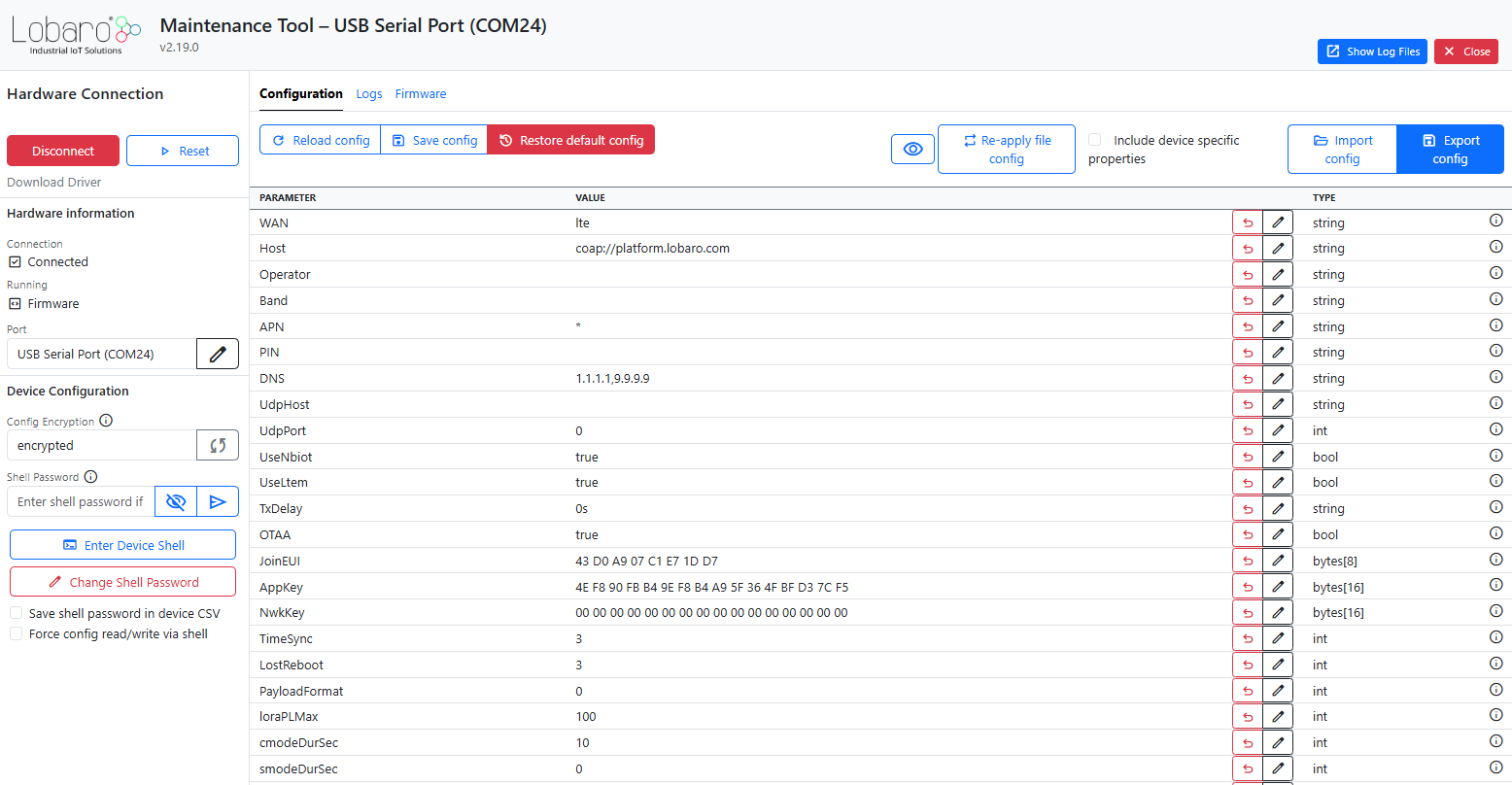
Download
Download the latest release from github.com/lobaro/flash-tool-release/releases.
- Windows:
...windows_x86_64.zip - Linux:
...linux_x86_64.zip - macOS (Apple Silicon):
...mac_arm64.zip - macOS (Intel):
...mac_x86_64.zip
System Requirements
- Operating systems: Windows, Linux, macOS
- UART (CONFIG port): 115200 baud · 8 data bits · even parity · 1 stop bit
Connecting with a third-party serial terminal
Any serial terminal can be used to read raw UART output. Use the settings above and ensure RTS/DTR are set correctly so the device runs the firmware instead of the bootloader.
Installation
Windows: Unzip the archive and start lobaro-tool.exe.
Windows may show a security warning — this is normal, click to continue.
Linux & macOS: Unzip the archive, make executable, and start:
chmod +x lobaro-tool
./lobaro-tool
macOS may block the app because it is not from the App Store.
Option 1 — System Settings: Try to open the app, then go to Apple Menu → System Settings → Privacy & Security → Open Anyway. (The button disappears about one hour after the blocked attempt.)
Option 2 — Terminal:
xattr -r -d com.apple.quarantine lobaro-tool
Connection Setup
Connect the USB Config Adapter to the device and to your computer. Select auto under Hardware Connection and click Connect.
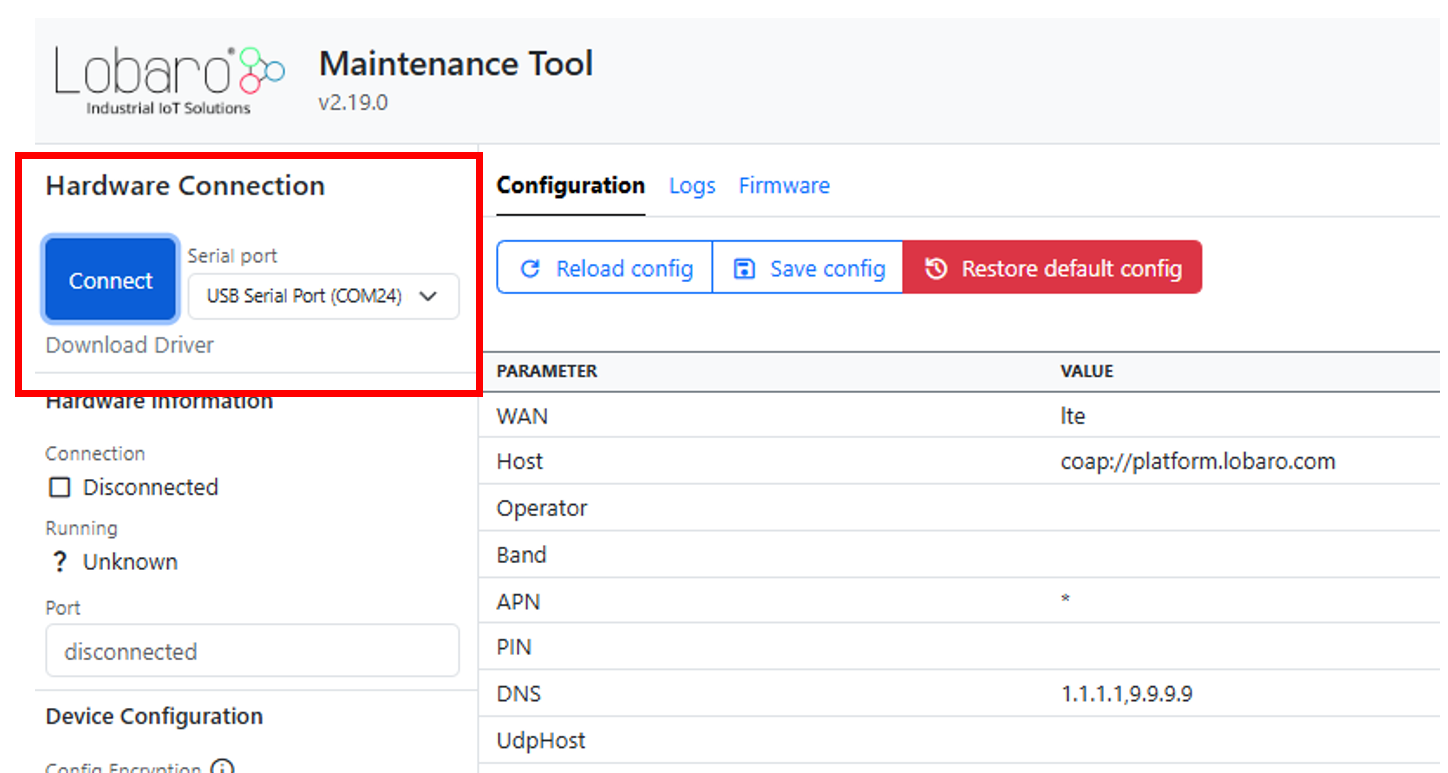
Configuration Tab
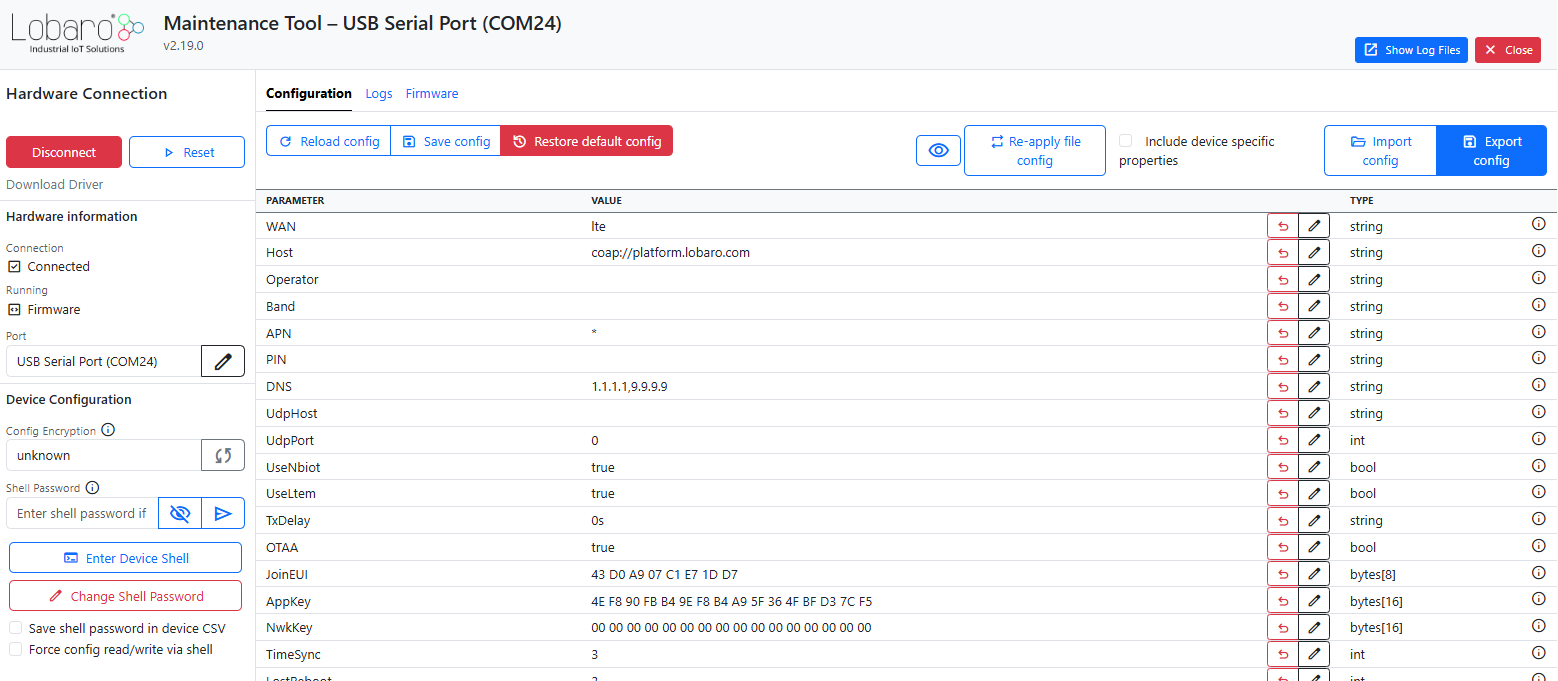
Use the CONFIGURATION tab to read and change device parameters:
- Reload Config — reads the current device configuration
- pencil icon — edit individual values (changed values appear bold)
- Write to Device — stores the modified values in device memory
- Restore Default — resets all parameters to firmware defaults
Every use of Reload Config, Write to Device, or Restore Default reboots the connected device. Do not press repeatedly.
When switching between devices, always press Reload Config first — otherwise you may accidentally write values from the previously connected device to the new one.
Logs Tab
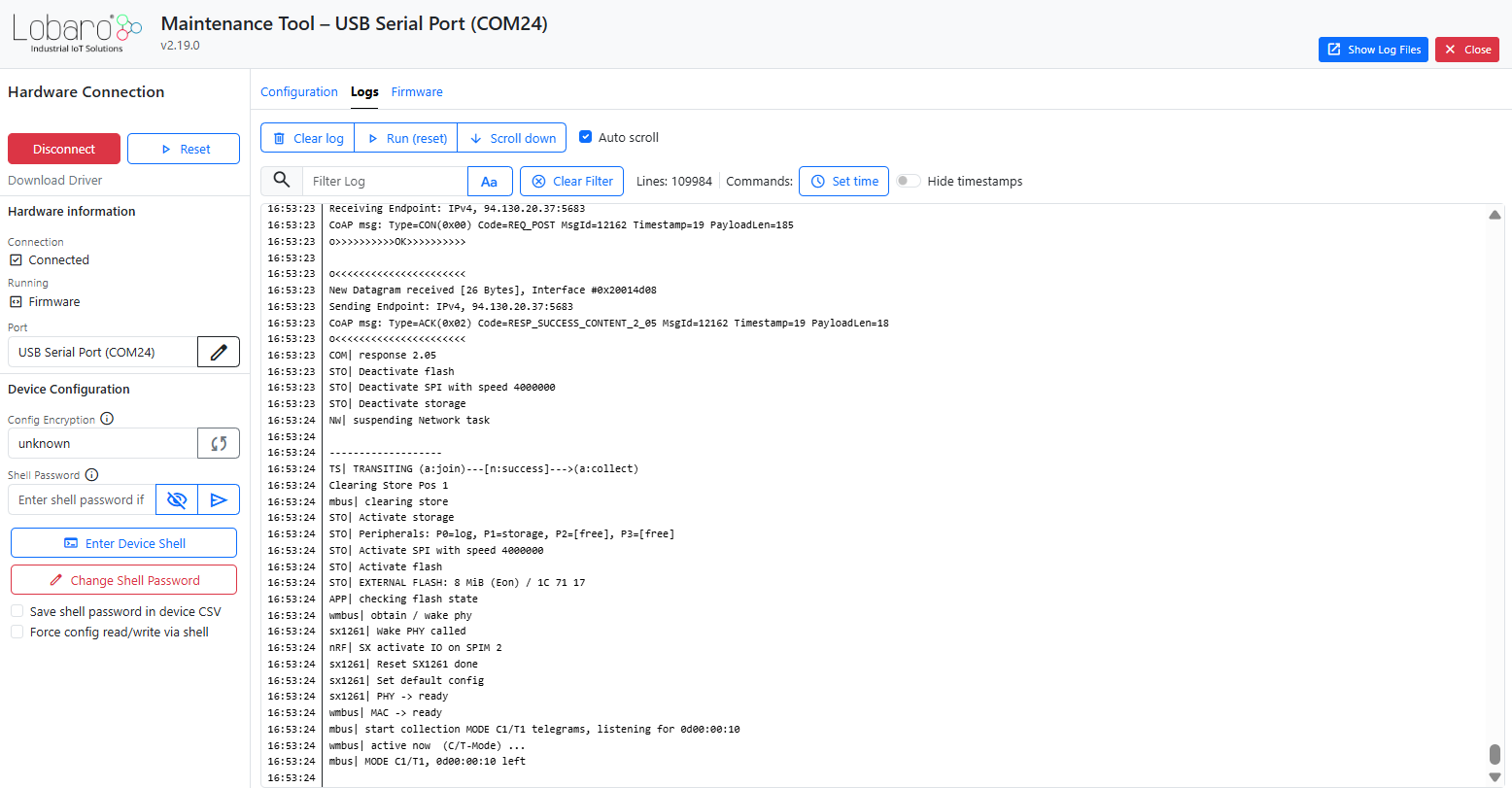
The LOGS tab shows live UART output. Use it to diagnose startup issues, inspect boot configuration, and trigger a restart with Run (reset).
Log files are the fastest way to diagnose device problems. When contacting support@lobaro.de, attach the log file from your device — it contains firmware version, configuration, and error details that help resolve issues quickly.
Log files are written automatically — click Show Log Files to open the folder:
| OS | Location |
|---|---|
| Windows | %homepath%\.lobaro\logs |
| Linux / macOS | ~/.lobaro/logs |
File name: <DATE>-uart-log.txt
Firmware Tab
Check the currently installed firmware version in the device log:
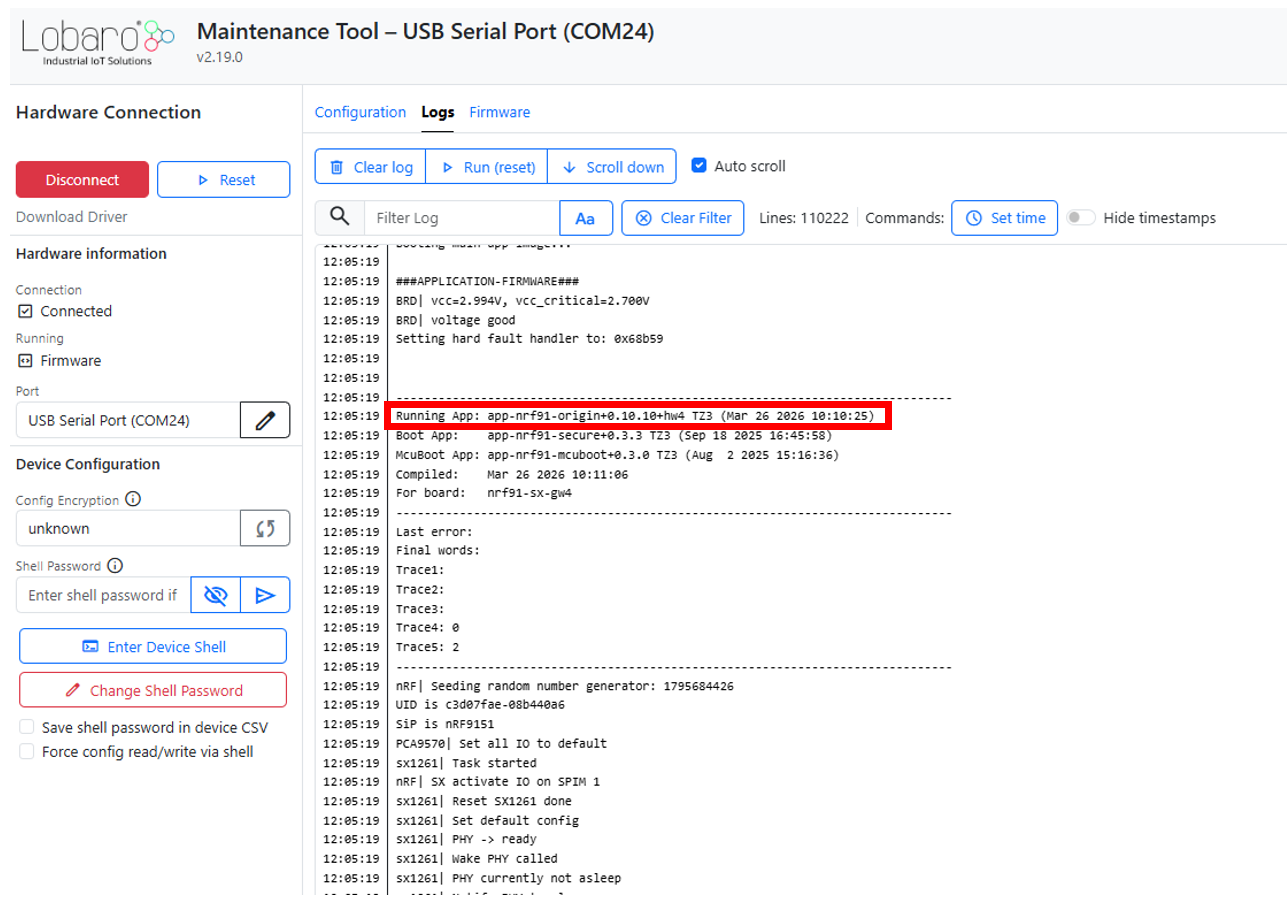
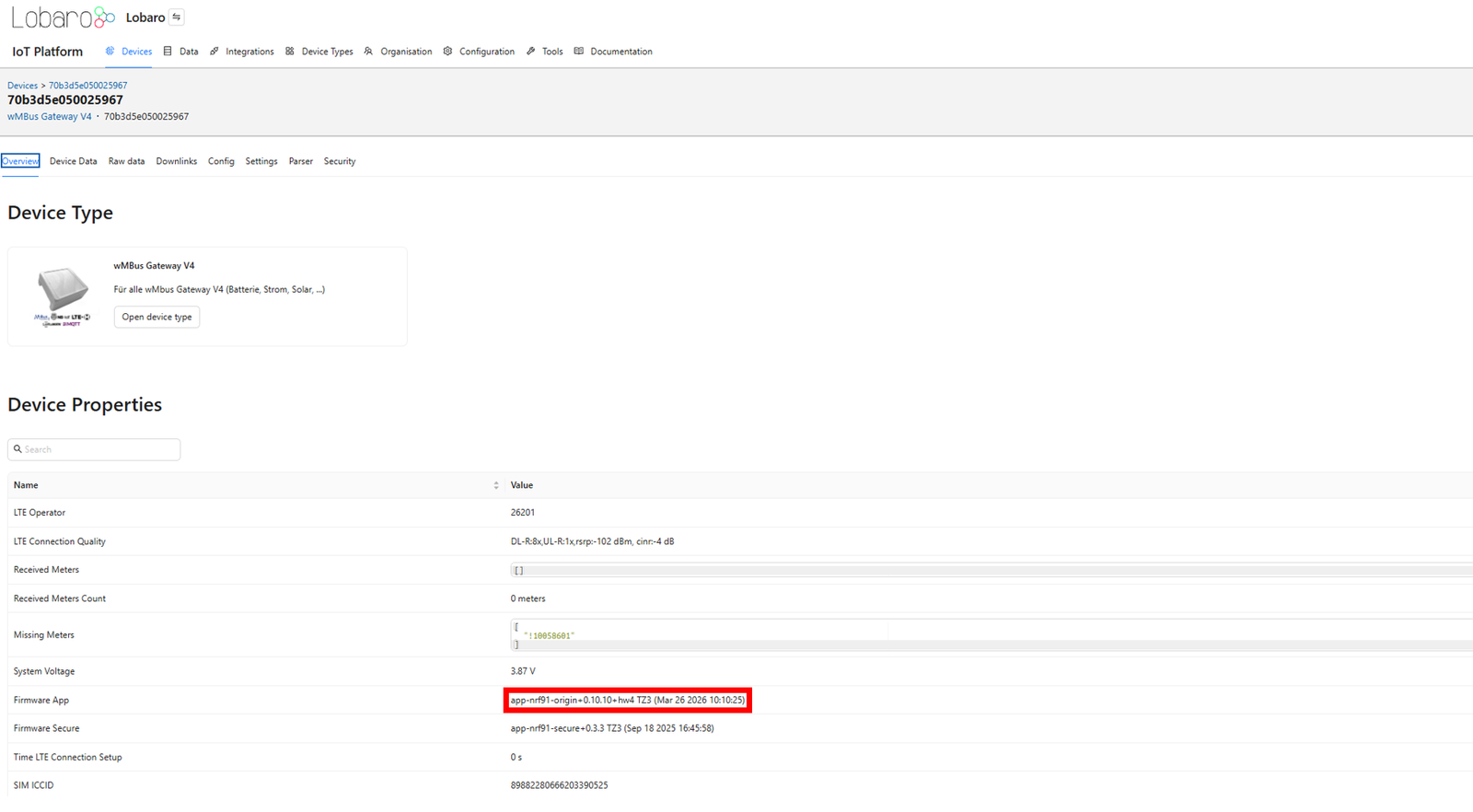
To flash new firmware, use Select Hex File and then Flash Hex File in the FIRMWARE tab:
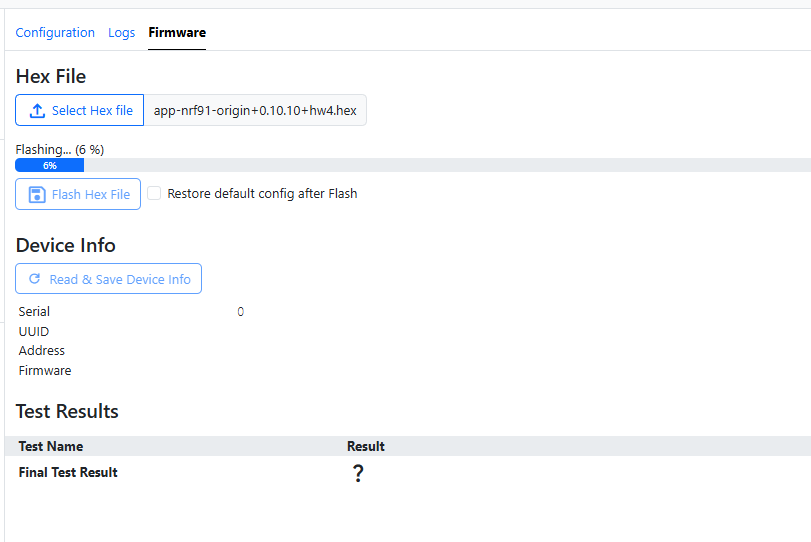
For the complete update workflow and file selection, see Firmware Update — Local via USB.
Password Protection
Use Change Shell Password to restrict local shell and configuration access.
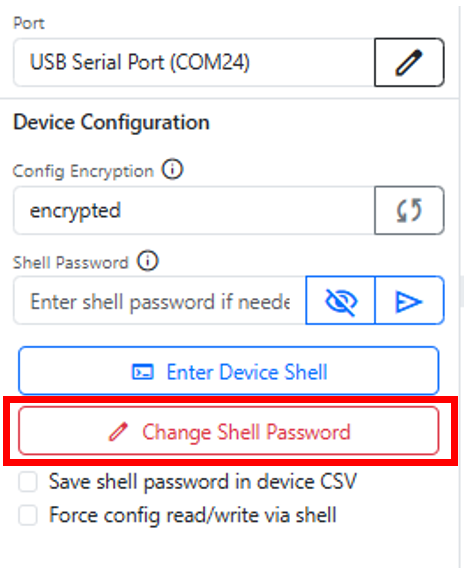
If you forget the shell password, it cannot be recovered. Store it securely before applying the change.
- Leave the password empty to remove an existing password
- Protection applies only to local access via the config interface
- The password can optionally be stored in the device CSV export